Whether you’ve just pulled off a clutch pentakill, landed a skin that looks absolutely pristine, or captured a moment that deserves to live forever in your highlight reel, knowing how to take League of Legends screenshots is a skill every player should master. A good League of Legends screenshot goes beyond simply hitting a hotkey, it’s about timing, settings, and post-processing to truly showcase what’s happening on your screen. From competitive plays that deserve esports-level documentation to those jaw-dropping skin moments, your screenshot game determines whether your best moments look forgettable or unforgettable. This guide walks you through everything: the tools at your disposal, the settings tweaks that transform visual quality, the moments worth capturing, and how to edit and share them like a pro. If you’ve ever taken a screenshot only to realize the UI cluttered the frame or the lighting made it look flat, you’re about to change that forever.
Table of Contents
ToggleKey Takeaways
- Master League of Legends screenshots by combining the right tools (F12 or ShareX), optimized graphics settings, and strategic HUD management to transform moments into shareable content.
- Capture your best moments at their peak: pentakills mid-ability animation, championship skins in neutral map areas, and team fights with context that demonstrates skill and decision-making.
- Optimize your graphics settings to High or Ultra, disable motion blur, and use Ctrl+H to hide the HUD for cleaner composition—these adjustments dramatically improve visual quality before editing.
- Edit strategically with light post-processing: crop tightly, adjust contrast and brightness, and boost saturation by 10-20% to match the in-game experience and make details pop.
- Organize your screenshot collection with consistent naming conventions and platform-specific subfolders to stay organized and retrieve memorable moments instantly when needed.
- Share thoughtfully across platforms: use high-resolution PNG files, add context and titles that explain the moment, and respect copyright by avoiding Riot’s proprietary assets outside gameplay documentation.
Why League Of Legends Screenshots Matter
League of Legends screenshots aren’t just vanity projects, they’re evidence of skill, narrative tools for storytelling, and currency in the gaming community. A screenshot of your first mastery 7 with a champion you love, your final competitive rank this season, or a legendary team fight has genuine value. They’re proof of progression, memorable moments worth preserving, and shareable content that bonds you with other players.
For esports enthusiasts and competitive players, screenshots document meta shifts, build innovations, and clutch moments. For casual gamers, they’re snapshots of joy, the first time you played a new champion skin, that ridiculous Baron steal, or the 4v5 win nobody thought was possible. Content creators use screenshots for guides, tier lists, and social media posts. Streamers clip them as intro graphics or highlight thumbnails.
Beyond personal use, well-shot League screenshots perform better on social media. A crisp, well-composed image of a pentakill or skin showcase generates more engagement than a blurry phone photo of your monitor. The difference between a screenshot that gets lost in your folder and one that sparks conversation in Reddit or Discord often comes down to preparation and execution. That’s where the technical knowledge kicks in, knowing what settings to adjust, what moments deserve capturing, and how to present them so they actually look as good as the moment felt in-game.
Essential Tools And Methods For Capturing Screenshots
Built-In Game Screenshot Features
League of Legends has a native screenshot function built directly into the client. By default, pressing F12 captures the screen and saves it locally to your League folder. This is the fastest method and requires zero third-party software, just hit the key and you’re done. The file saves as a PNG, which is lossless and ideal for editing or sharing high-quality versions.
The advantage of F12 is simplicity and zero performance impact. You’re not running extra background processes, and the capture happens instantly without game lag. For casual captures or competitive moments where you need the shot now, this is unbeatable. The downside? Limited options for framing, cropping, or adjusting on-the-fly. You get what the HUD shows, and any UI elements clutter the frame.
Third-Party Screenshot Software
For more control, third-party tools dominate the space. ShareX (free) is a gamer favorite, it’s lightweight, lets you define custom regions before capturing, and integrates with cloud storage. Nvidia ShadowPlay (free for Nvidia GPU owners) records gameplay in the background and lets you save the last few minutes as still frames or video, meaning you can capture a moment you missed initially. OBS Studio (free, open-source) offers frame-by-frame screenshotting during recordings, giving you pixel-perfect control.
For Windows users, the built-in Snipping Tool or Windows 11’s Screenshot feature work fine for casual captures, though they lack gaming-specific optimizations. Gyroflow Toolbox is specialized for action games and can stabilize shaky moments. Mac users benefit from ScreenFloat, which organizes captures beautifully. Each tool trades convenience for control, pick based on your workflow.
Third-party software shines when you want to exclude UI, capture specific regions, or apply filters in real-time. The tradeoff is setup time and occasional performance overhead, though modern tools are lightweight enough not to tank your FPS.
Mobile And Console Capture Options
If you’re playing League on mobile (Wild Rift), native screenshot functions differ by device. iOS users press Volume Up + Power simultaneously, and the screenshot saves to Photos. Android users long-press the Power button and tap Screenshot, or use Volume Down + Power depending on the device. Both are instant and require no setup.
For console players (Wild Rift on Switch), the console’s built-in capture button works, Y on Joy-Con on Nintendo Switch. PlayStation and Xbox versions aren’t native to League, but if you’re playing other League-adjacent titles, their capture systems (PS Button + Square on PS5, Xbox button + Y on Xbox) function similarly.
Mobile and console captures automatically compress to JPG or PNG depending on the platform. They’re lower resolution than PC captures but suitable for social media or casual sharing. For maximum quality, PC remains the gold standard.
Optimizing Your Game Settings For Better Screenshots
Graphics And Visual Quality Adjustments
Before you hit capture, graphics settings dictate how stunning your screenshot actually looks. Fire up League’s settings menu and navigate to Graphics. Set Graphics Quality to at least High or Ultra if your GPU can handle it without tanking FPS during gameplay. Ultra settings render more detail on champion models, skins, and the Rift itself, the difference is visible in screenshots even if it costs 10-15 FPS.
Disable Motion Blur entirely. Motion blur looks cinematic in trailers but destroys static images, making them feel soft and blurry. For screenshots, you want razor sharpness. Similarly, disable or minimize Bloom if it’s washing out bright areas. Adjust Shadows to High or Ultra: poor shadow detail flattens the visual depth of a screenshot.
Play with Contrast and Brightness slightly above your normal gameplay settings. Screenshots don’t benefit from the same monitor calibration as live gameplay, so a 10% increase in contrast makes details pop on most displays. If your GPU allows, enable FXAA or SMAA anti-aliasing, this smooths jagged edges, especially on champion spell effects and ability particles.
Color Saturation is a preference call, but a 5-10% bump makes team fight moments more visually striking. Avoid overdoing it: the goal is clarity, not cartoon aesthetics.
UI Customization And HUD Management
Nothing ruins a perfect moment faster than a cluttered HUD. League has powerful HUD customization options. Open Settings > Interface and look for HUD Scale. For full-screen competitive moments, reduce this to 75-80% of default, it keeps vital info visible but prevents oversized UI elements from dominating the frame.
Toggle off elements you don’t need for the screenshot. Disable Team Frames if you’re capturing a 1v1 duel or champion skin showcase. Hide the Minimap for portraits or skin highlights, you can toggle it back on immediately after. The Chat window is almost always worth hiding. Use Ctrl + H as a quick HUD toggle: this hides everything except the minimap, perfect for team fight captures where you want a clean view of ability particle effects.
For cinematic captures, consider disabling the FPS Counter and Network Graph if they’re enabled. These ruin otherwise perfect screenshots. If you’re capturing your rank or competitive achievements, leave the full HUD on to provide context.
During team fights, the default HUD is best, it documents the actual gameplay experience. For skin showcases or champion portrait moments, use the HUD toggle to minimize clutter. You’re essentially framing your shot: the less distraction, the better the composition.
Best Moments To Capture In League Of Legends
Epic Teamfights And Pentakills
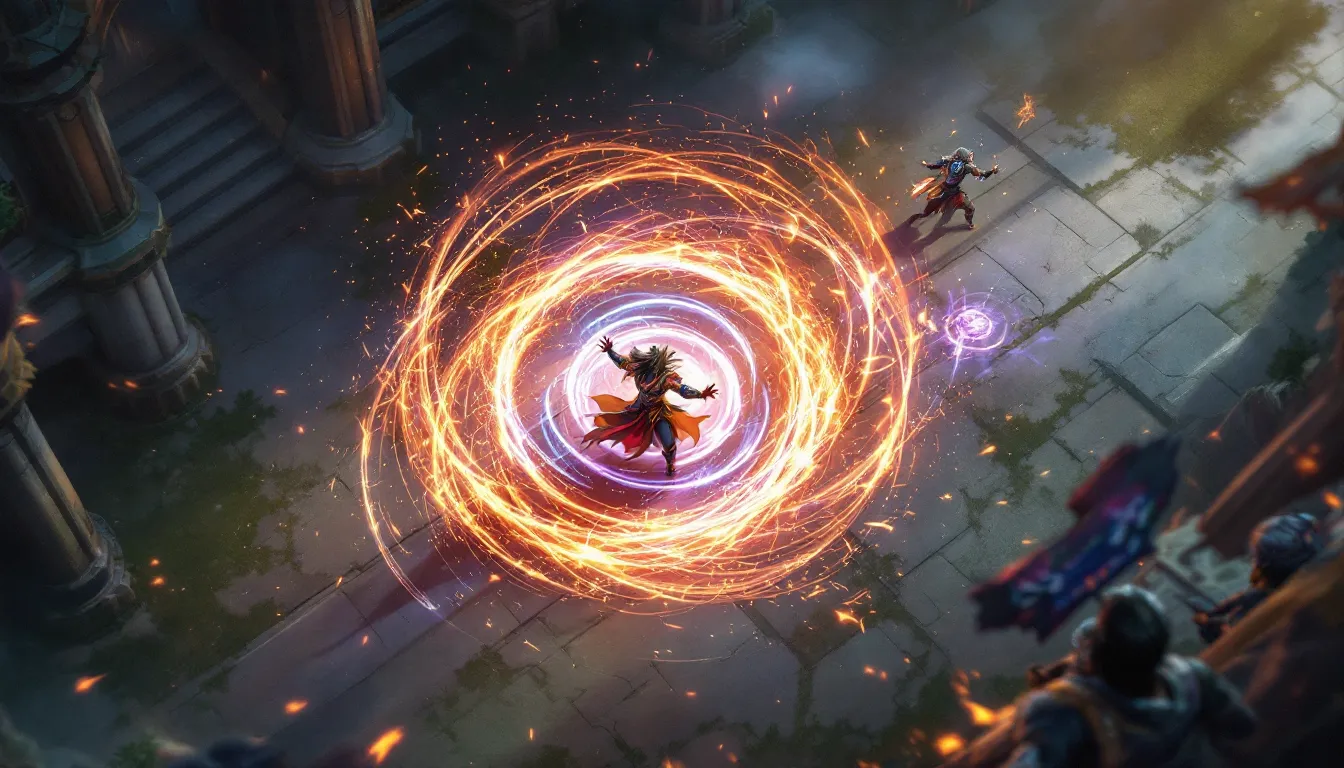
Team fight moments are the crown jewels of League screenshots. A pentakill is the obvious choice, everyone wants proof they pulled off the rarest achievement. The magic is catching it at the peak moment: the last enemy falling, your character in a powerful ability animation, the scoreboard clearly showing 5 kills. Don’t screenshot the post-fight static screen: capture the action itself.
For large team fights where your team wins a crucial objective, aim for the moment when the winning fight concludes but before the enemies fully die. This captures the tension and skill. The best angles show your champion’s ultimate ability mid-cast or just after landing, it documents the mechanical play that won the fight. Disable the minimap and chat to eliminate distractions.
When capturing competitive moments, context matters. A screenshot of your team at Baron with a 4-1 health advantage documents decision-making. A screenshot of your team wiping the enemy squad mid-engage shows defensive positioning or counter-initiation. These moments help others understand the meta and macro play, useful if you’re creating guides or analyzing games.
Championship Skins And Character Highlights
Championship skins, prestige editions, and event-exclusive cosmetics demand spotlight captures. These are the moments where UI is your enemy. Position your champion in a neutral area, not mid-fight, just standing on the Rift or in practice tool. Use Ctrl + H to hide the HUD entirely. Zoom in slightly to focus on the skin details. Championship skins have intricate borders, golden accents, and exclusive particle effects: a clean screenshot shows them off.
For skin showcases, timing matters less than framing. Aim for good lighting zones on the map, areas without excessive shadows or overly bright spots. The river and jungle camps offer neutral backdrops. If you own multiple prestige skins or rare chromas, capturing them in a series (one screenshot per skin) creates shareable content. The League community loves skin showcases, especially rare ones.
Champion mastery milestones are worth documenting too. A screenshot of your Mastery 7 splash screen with your champion in-game simultaneously (if using a second monitor or split-screen) proves dedication. For players pursuing League of Legends Cinematics, capturing a champion from an iconic cinematic moment matches the emotional weight. If you’re working toward a specific champion collection, screenshots track your progress, useful for personal motivation or content creation.
Event-specific moments matter too. Project skin releases, K/DA collaborations, or limited-time cosmetics have cultural weight in the community. Capture them when they’re fresh: these screenshots gain value over time as cosmetics become legacy items. The rarer the moment, the more documentation is worth it.
Editing And Organizing Your Screenshot Collection
Post-Capture Editing Techniques
Raw screenshots are a starting point, not the finish line. Most competitive gaming moments benefit from light editing. Use Photoshop, GIMP (free), or Affinity Photo for advanced work. For simple adjustments, even Windows Photos or Preview on Mac work well.
Start with cropping. Most League screenshots contain unused space, map edges, empty sky, or irrelevant UI. Crop tightly around your subject. A pentakill screenshot should focus on the action, not the entire map. A skin showcase should center the champion, not include dead space. Tight framing immediately improves composition.
Next, adjust levels (brightness/contrast). Screenshots often look flatter than the in-game experience due to monitor differences. Slightly increase midtone brightness and shadow depth. This takes 30 seconds and dramatically improves visual pop. Avoid crushing blacks or blowing out highlights: the goal is balance, not HDR extremism.
Saturation is optional but effective. A 10-20% saturation boost makes colors feel more vibrant and closer to what you saw in-game. This is especially useful for competitive moments or skin showcases. Don’t oversaturate: it looks amateur.
Sharpening filters help if the screenshot feels soft. Use Unsharp Mask at 100% amount, 1.0 radius, and adjust threshold to 0-5 depending on the original sharpness. This enhances edges without creating obvious halos.
For creative edits, add subtle text overlays, your username, the moment description, or play-by-play information. Keep text readable, avoid bright colors that clash, and position it in corners rather than the center. Some gamers add watermarks: this is optional but smart if you’re uploading to public forums or social media frequently.
Save edited versions separately from originals. Use a naming convention like “[Date][Champion][Moment]_edited.png” to stay organized.
File Management And Storage Solutions
League’s default screenshot folder fills up quickly. Navigate to Documents/League of Legends/Screenshots (Windows) or ~/Library/League of Legends/Screenshots (Mac). This is where F12 saves captures by default. Create subfolders for organization: Competitive, Skins, Pentakills, Montages, etc. This takes minutes and saves hours searching later.
For active game folders, external storage makes sense. A 2TB external SSD costs $30-50 and holds thousands of high-resolution screenshots without slowing your system. Store the current season’s screenshots on your main drive for quick access and older seasons on external storage.
Cloud storage options include OneDrive, Google Drive, or Dropbox. These auto-sync screenshots across devices, provide backup protection, and enable easy sharing. Dropbox offers 2GB free: Google Drive offers 15GB. For serious collectors, Amazon Photos (unlimited storage with Prime membership) is excellent. The tradeoff is upload time and potential latency when pulling files later.
For archival, use a consistent naming structure:
- YYYY-MM-DD_ChampionName_Moment.png (2026-03-15_Ahri_Pentakill.png)
This sorts chronologically and makes searches instant. Tags or metadata in Windows Explorer or Mac Finder add another search dimension, tag pentakills with “pentakill,” competitive moments with “ranked,” etc.
Periodicically back up your entire screenshot folder, quarterly is reasonable for casual players, monthly for serious content creators. Services like Mobalytics don’t host screenshots directly, but gamers often cross-reference their screenshots with build guides and meta analysis, so integration is seamless if you’re building guides.
Sharing Your Screenshots Across Social Media
Platform-Specific Best Practices
Each platform has unique requirements and audience expectations. Reddit (especially r/leagueoflegends) favors high resolution, clean composition, and context. Post the raw or lightly edited screenshot, add a title that explains the moment briefly, and include a comment with additional details. Reddit users appreciate timestamps, build information, or server region if relevant. Screenshots of unusual plays, rare skins, or impressive stats generate discussion, lean into the moment’s uniqueness.
Twitter/X compresses images, so ensure text remains readable even at thumbnail size. Use a strong title in your post, “1v4 Baron steal” is better than “cool moment.” Include relevant hashtags like #LeagueOfLegends, #LOL, or #esports. Twitter’s algorithm favors engagement, so ask a question in your caption: “What’s your most clutch moment?” This drives replies and boost visibility. Avoid over-posting: one high-quality screenshot per day is better than five mediocre ones.
Instagram prioritizes aesthetics. Crop screenshots to a 4:5 or 1:1 aspect ratio (portrait or square). These dimensions fill mobile feeds better than ultra-wide images. Use the first-comment strategy: post the screenshot, then immediately comment with a caption (Instagram’s algorithm actually favors this). Include 5-10 relevant hashtags: #LeagueOfLegends, #LEC, #esports, #gamingcommunity, etc. Reels and Stories perform exceptionally well: consider short video clips of the moment paired with screenshots.
Discord servers dedicated to League have dedicated screenshot channels. Upload directly without compression: Discord preserves high-resolution images if you’re a member of a quality server. Tag it with context: “competitive,” “skin showcase,” or “clutch moment.” Discord’s real-time chat means immediate feedback and discussion, this is valuable for testing what screenshots resonate before wider sharing.
TikTok is emerging as a League platform. Short clips with screenshots as B-roll, paired with trending audio, perform exceptionally well. A 15-30 second video showing your pentakill screenshot with hype music and text overlays (“POV: You hit a pentakill”) generates massive engagement. TikTok favors native uploads over cross-posts, so re-film or edit specifically for the platform.
For esports fans, LoL Esports occasionally features fan content on official channels or community spotlights. Professional screenshots, well-composed, edited, contextual, have a better chance of being noticed. Include your username and region if submitting to official community programs.
Avoiding Common Mistakes And Copyright Issues
The biggest mistake is posting poorly compressed images. Always upload the highest quality version your platform allows. Avoid JPG compression: PNG preserves detail and looks sharper. If a platform auto-compresses, test a thumbnail preview before going live, a blurry pentakill screenshot damages credibility.
Second mistake: including identifying information you don’t want public. If your screenshot shows your Summoner Name, Region, or Rank prominently, you’re publicly documenting your account level. This is fine if you’re a content creator but risky if you’re a casual player. Consider censoring or cropping sensitive info if you’re sharing with strangers.
Third: copyright concerns with Riot assets. Screenshots of gameplay are entirely yours, you’re documenting your own experience. But, if you’re using champion splashart, cinematics, or promotional images outside of gameplay screenshots, you’re using Riot’s IP. League cinematics, discussed in detail at League of Legends Cinematics, are copyrighted content. If you’re creating fan guides or educational content, you can use screenshots of cinematics under fair use, but commercial use requires permission.
For skin screenshots, How Many Skins in League of Legends catalogs cosmetics extensively. Posting screenshots of skins you own is fine: creating a guide comparing skins using in-game screenshots is fair use. Avoid editing screenshots to misrepresent skins or create fake cosmetics, this violates Riot’s terms and spreads misinformation.
If you’re posting competitive moments, verify the moment actually happened in-game. Fabricated screenshots or heavily edited fake moments damage your credibility permanently. The gaming community is quick to call out Photoshop fakes, and the consequences are severe (account suspicion, community distrust, potential bans).
Watermarks protect your work. Add a simple text overlay with your username or social handle. Watermarks can be removed, but they signal ownership and discourage theft. If you’re a content creator, this is especially important, protect your compilations and original moments.
Lasty, credit context when relevant. If you’re sharing a screenshot of a moment inspired by League of Legends esports or professional play, mention the source. If you’re recreating a pro player’s play, credit them. This builds community goodwill and positions you as authentic rather than a content thief.
Conclusion
Taking perfect League of Legends screenshots is a blend of technical knowledge, timing, and creativity. From leveraging F12 or third-party tools to optimizing graphics settings and hiding the HUD strategically, the foundation matters. But execution, knowing when to capture, how to frame the moment, and what to emphasize, separates forgettable screenshots from shareworthy moments.
The best screenshots tell stories. They document pentakills that felt impossible, skins that spark joy, competitive achievements that prove growth, and moments that bond you with the League community. Whether you’re preserving a personal milestone or building content for an audience, the time invested in learning these techniques pays immediate dividends.
Start with the basics: use F12 or a simple third-party tool, adjust your graphics settings to High or Ultra, and hide the HUD when necessary. Capture moments that matter, not every kill, but the ones that stand out. Spend a minute editing: crop, adjust contrast, maybe boost saturation slightly. Organize your library so you can find that pentakill from two months ago in seconds. Share thoughtfully, respecting platform conventions and community norms.
Your screenshots deserve to look as good as the moments felt. With these strategies, they will.